Creating Report Types After Upgrading to Version 3.9
 Updated
by
PolicyMap
Updated
by
PolicyMap
Version 3.9 of PolicyMap for Salesforce creates a custom report type for each object you set up in PolicyMap Admin Settings. Each one lets you report on that object's records together with their PolicyMap data. If you upgraded from version 3.8 or earlier, your existing objects don't have report types yet. This page explains how to create them.
What you'll see after upgrading
When you open PolicyMap Admin Settings, each object you set up before upgrading shows this message in red:
Report type: Report type could not be created.
Nothing is wrong. The message appears because your objects were set up before PolicyMap could create report types.
Create the report type
- In PolicyMap Admin Settings, find an object that shows Report type could not be created.
- Click Create default Report Type under that message. The status changes to being created... while PolicyMap builds it.
- When it's done, you'll see the report type's name, for example PolicyMap: Account with PolicyMap Data.
- Repeat for each object.
You don't have to click the button for every object. PolicyMap also creates any missing report types the next time you save Admin Settings, and for each object you import PolicyMap data for.
What's in a report type
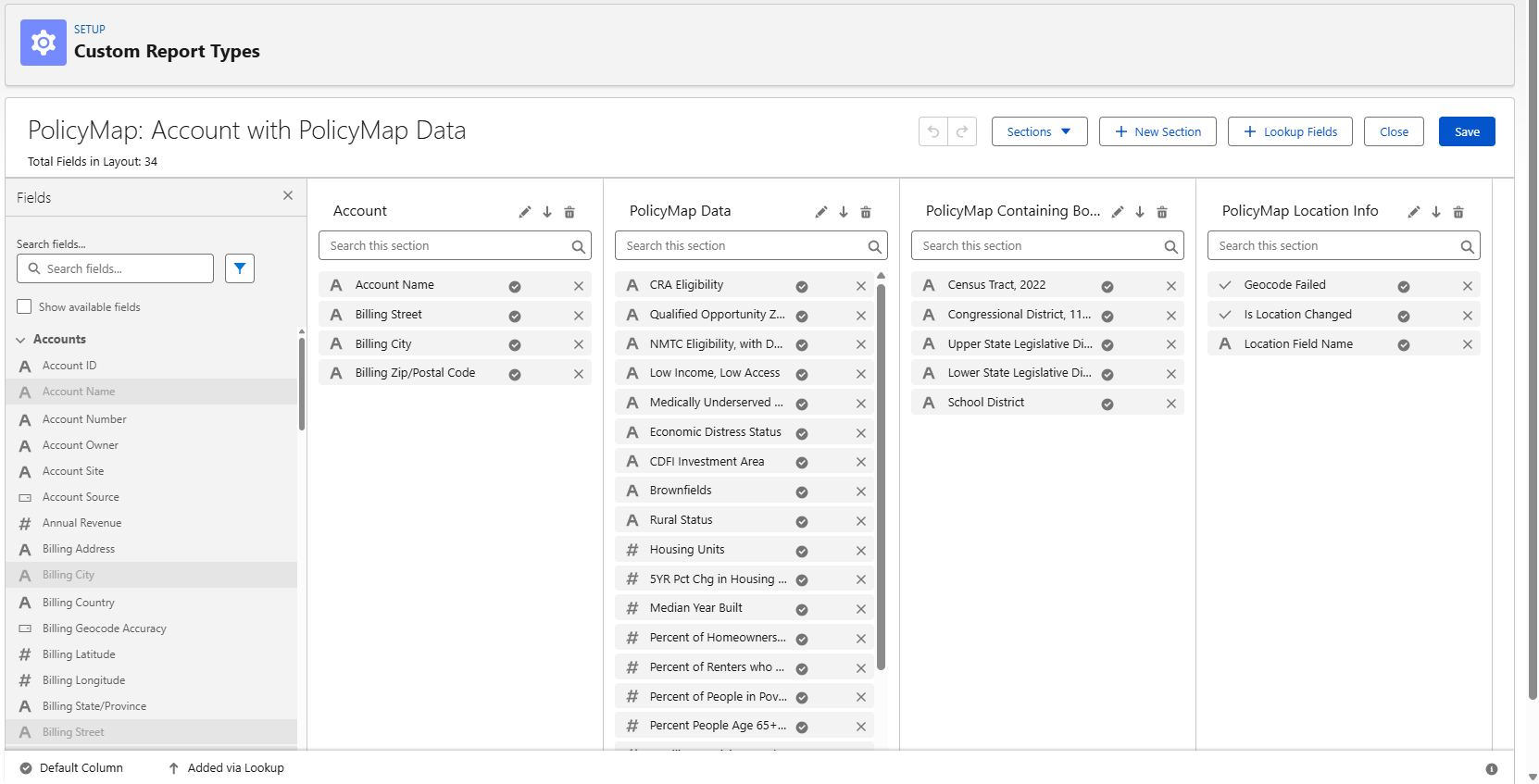
Each report type contains these sections:
- The object (for example, Account): the record name and the location fields PolicyMap uses
- PolicyMap Data: every PolicyMap data field you've imported, labeled with its time frame and geography
- PolicyMap Containing Boundaries: the boundaries, such as county or census tract, that contain each location
- PolicyMap Location Info: whether geocoding failed, whether the location changed since the data was imported, and which location field was used
A report built from one of these report types shows only records that have PolicyMap data.
Use and customize the report types
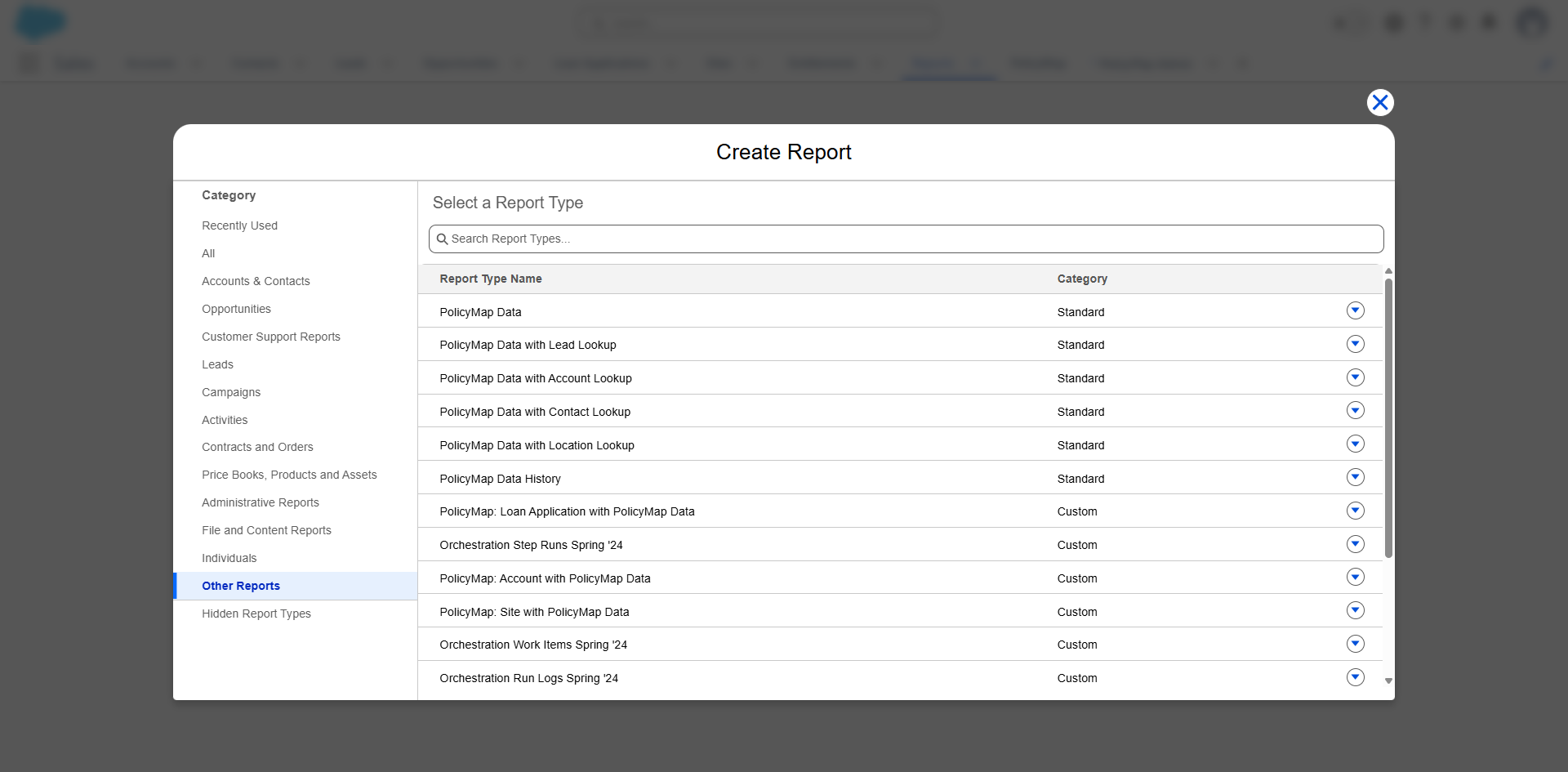
To build a report, go to Reports, click New Report, and look under Other Reports for the report types whose names start with PolicyMap:
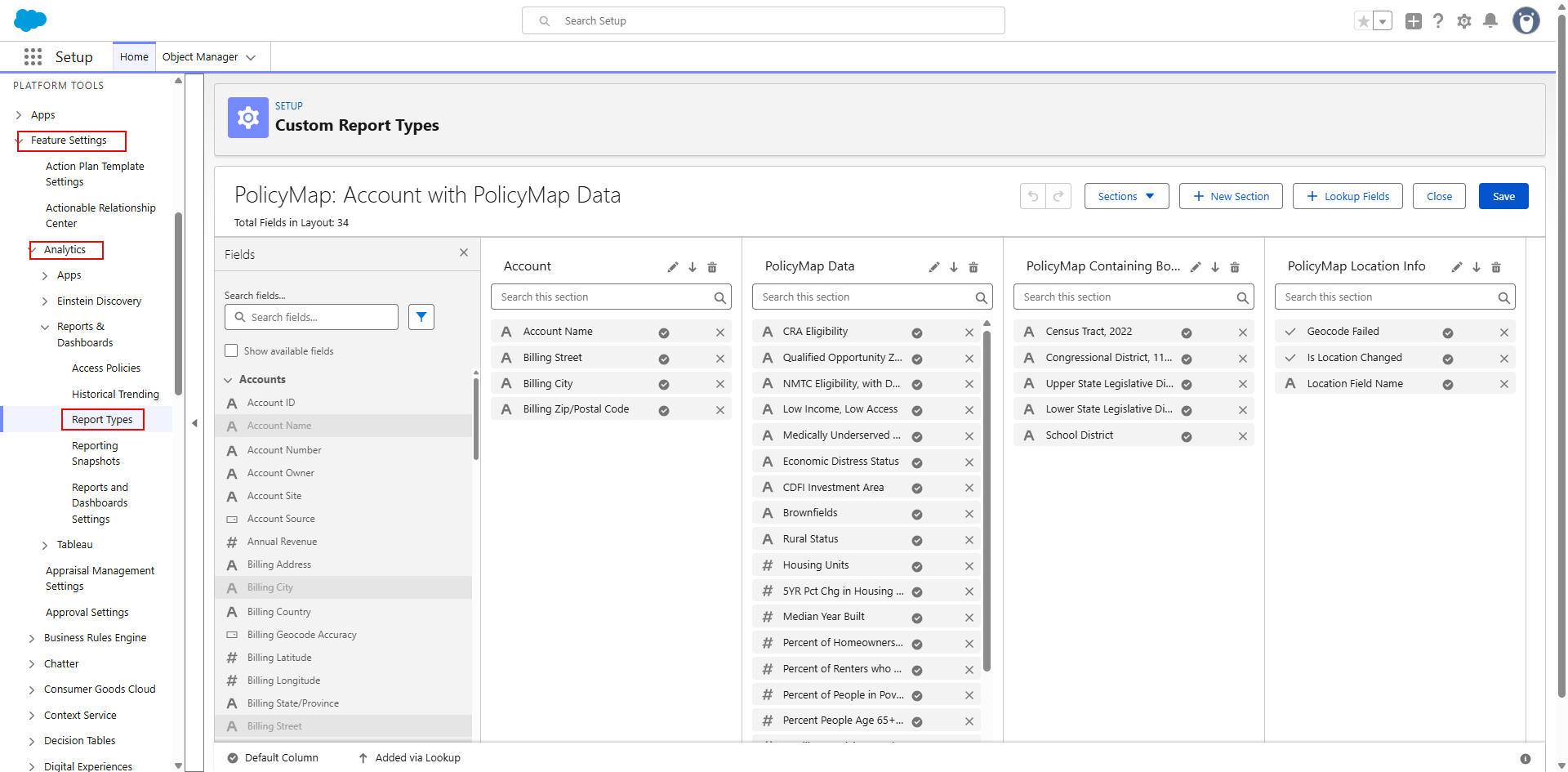
To add more of the object's own fields, edit the report type in Setup > Feature Settings > Analytics > Reports & Dashboards > Report Types. You can also change its label, description, and category, rearrange its sections, and change which fields are selected by default.
When you import new PolicyMap data
When you import new PolicyMap data fields, PolicyMap adds them to the matching report types automatically. Your changes in Setup are kept.
Restore a report type to the default
To undo your changes to a report type's fields and sections, click Restore default Report Type under the object in PolicyMap Admin Settings. Its label, description, and category stay as they are.
Restoring can't be undone. Any fields and sections you added or changed in Setup are lost.
When you remove an object from Admin Settings
PolicyMap doesn't delete the object's report type, so reports built on it aren't lost. PolicyMap stops updating it, though. If you don't need it anymore, you can delete it in Setup.
If you add the object back later, PolicyMap updates the existing report type instead of creating a new one, and your changes in Setup are kept.
