PolicyMap Data and Related Reports
 Updated
by
PolicyMap
Updated
by
PolicyMap
Add PolicyMap data into Reports
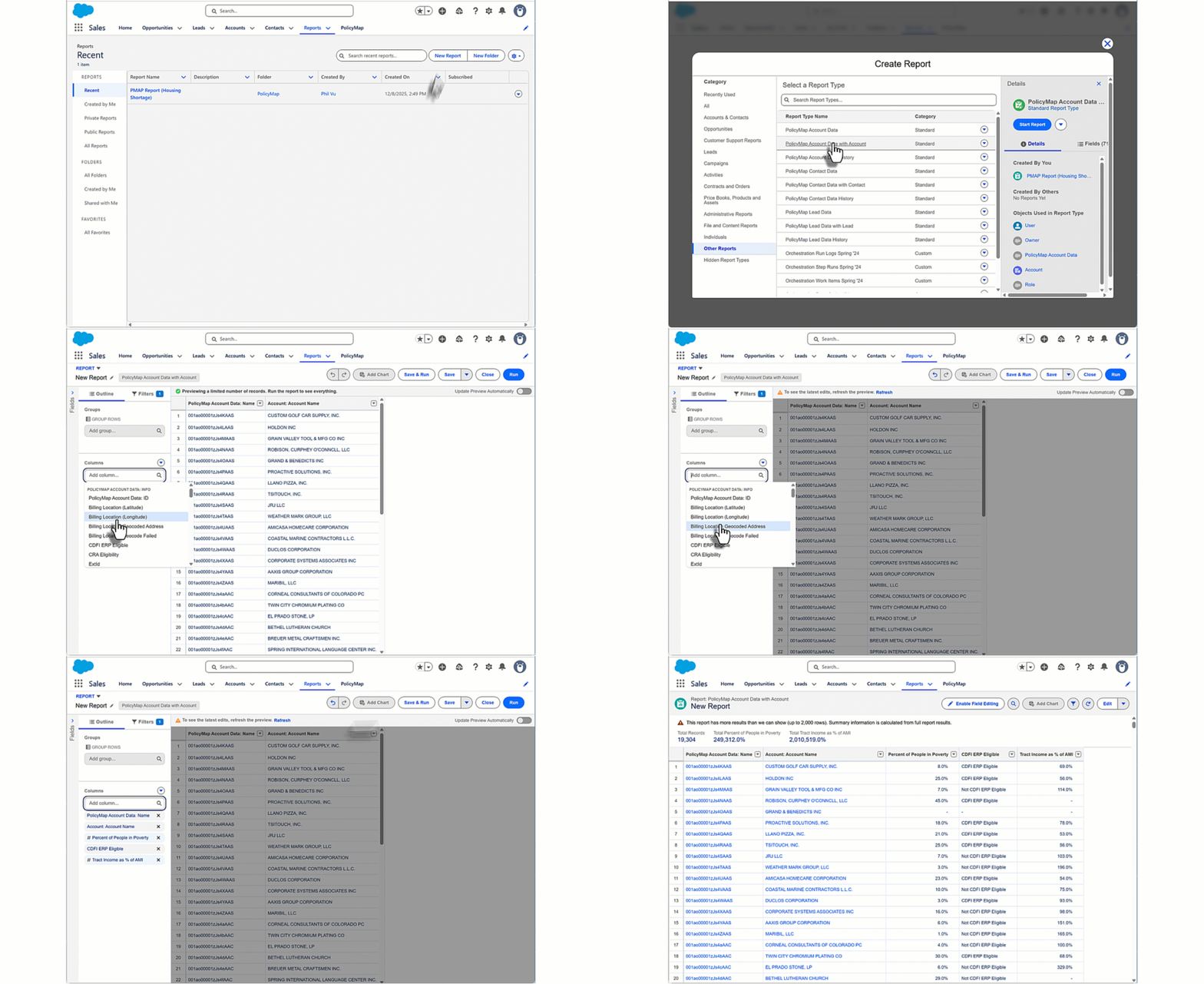
Once you have added PolicyMap data to your index cards, it is available for display in your Salesforce reports. Like the Index Cards, these reports can display multiple pieces of data for a list of Accounts, Contacts, and Leads.
In Reports, select New Report and from the left list, choose Other Reports. Select any report with PolicyMap... as the lead
- PolicyMap Account/Contact/Lead Data will show only data from PolicyMap and limited data from the object
- PolicyMap Account/Contact/Lead Data with Account/Contact/Lead will show more details for the object and PolicyMap data
- PolicyMap Account/Contact/Lead Data History will have limited data from the object, data from PolicyMap, and some event history data for PolicyMap data.
How to join PolicyMap data to related records in Reports
PolicyMap for Salesforce provides location-based data for Account, Contact, and Lead records. Other standard and custom objects may display the PolicyMap data from their related Accounts, Contacts, or Leads.
For instance, you want to display PolicyMap data for Opportunities. By default, the Opportunity object does not have its own Address field. However, you can display the PolicyMap data for the Account associated with each Opportunity.
- In the Account object, create a Roll-Up Summary Field called “Count of Opportunities”. Choose “Opportunities” as the Summarized Object and Roll-Up Type “COUNT”.
- Create a Joined Report with two blocks: PolicyMap Account Data with Accounts and Opportunities.
- Group Across Blocks by Account Name.
- Filter the PolicyMap Account Data with Accounts by Account:Count of Opportunities > 0.
The result will be a report that shows PolicyMap Account Data fields associated with each Opportunity.
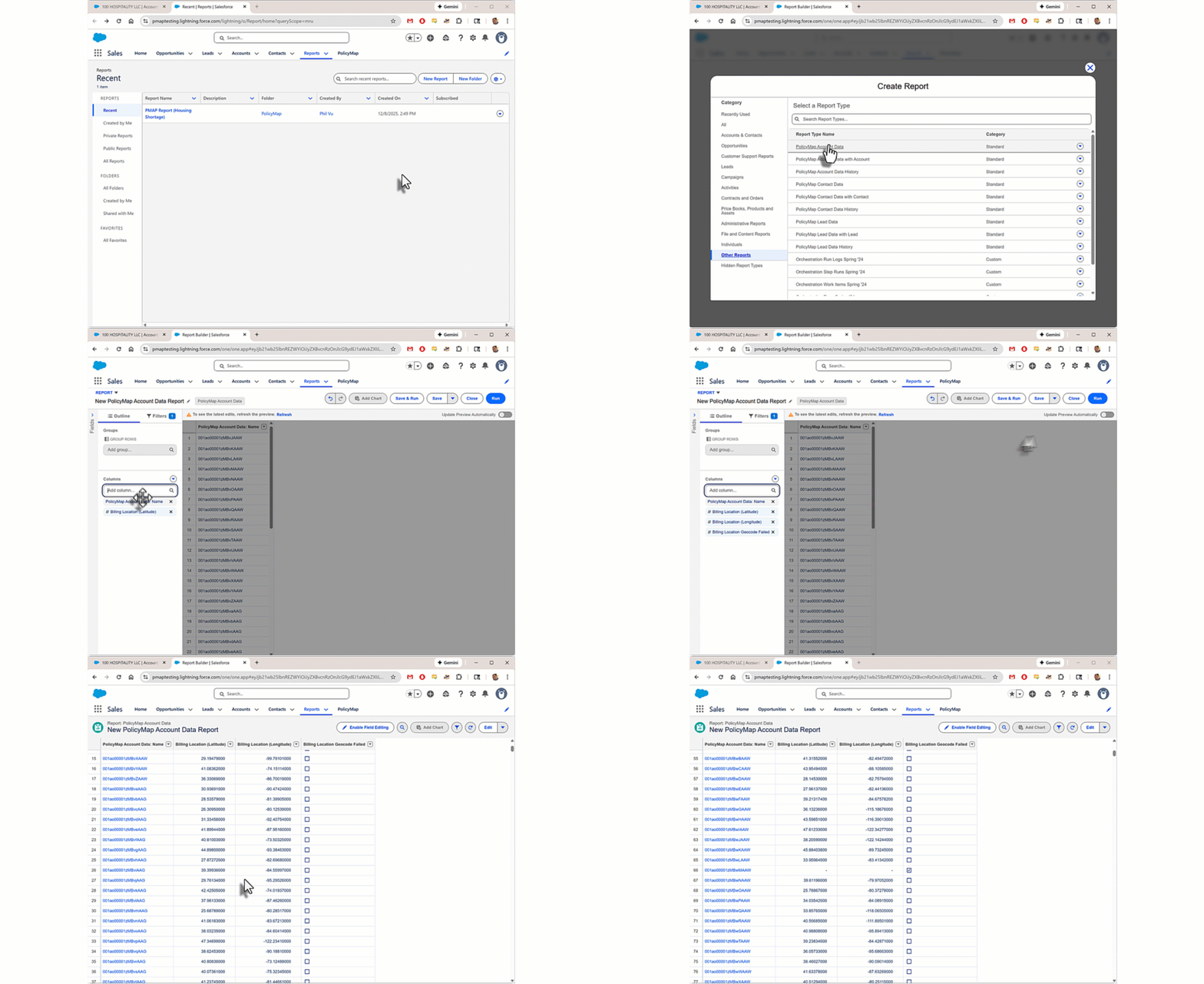
Create a Report to see Failed (and Matched) Geocoded Addresses
Every geocoder can have problems finding addresses; we have implemented a two-step process to improve the match rate. To see a complete report of all matched and failed addresses, use the Geocoded Failed value in the report.
In Reports, select New Report and from the left list, choose Other Reports. Select any report with PolicyMap as the lead. In the report builder, select Geocoded Failed, and the report will show addresses that matched and the checked box for failed addresses.